
GPT Image 2.5 vs GPT Image 2: What Changed and Is It Worth Switching?
We ran the same prompts through GPT Image 2.5 and GPT Image 2 to see what actually changed: speed, lighting, detail, text in images and multi-turn editing.
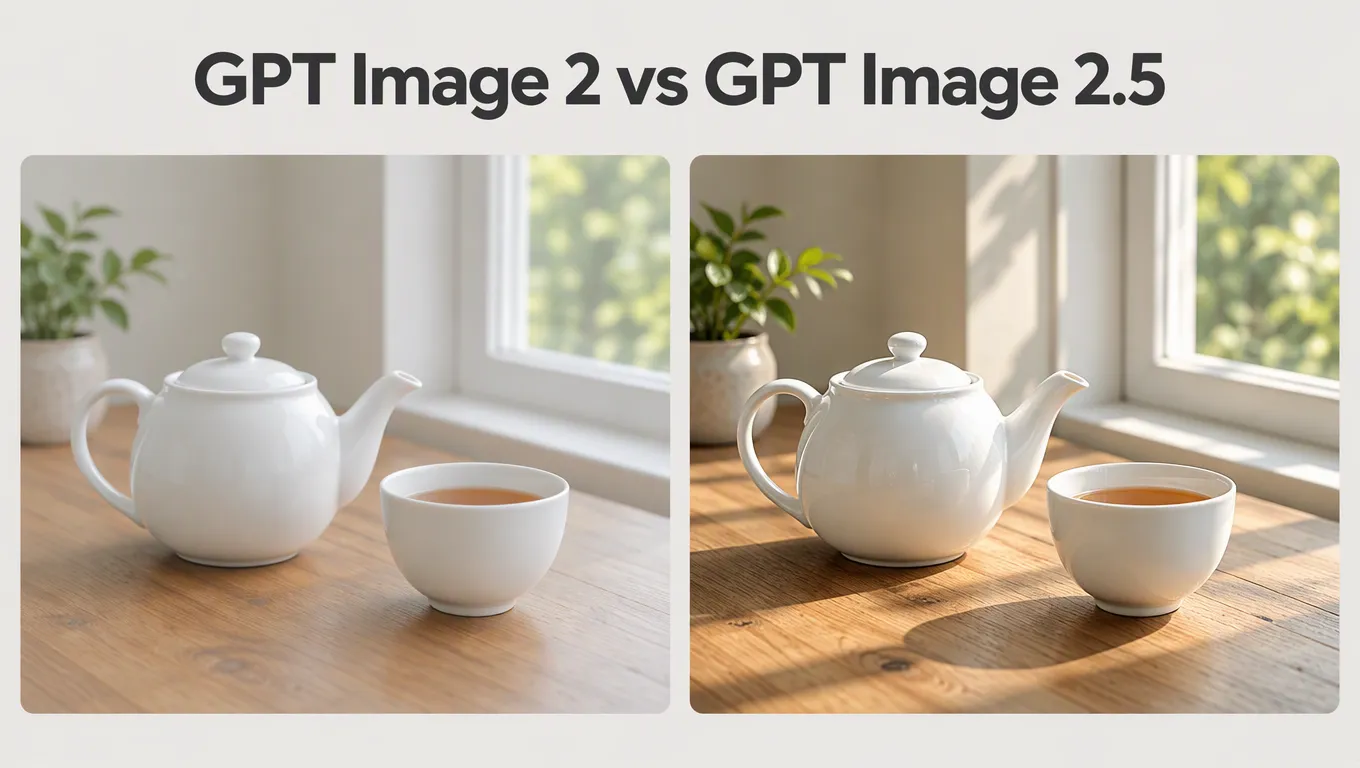
GPT Image 2.5 is OpenAI's newest image model, released in September 2026 as the successor to GPT Image 2. If you already get good results from GPT Image 2, the obvious question is whether the upgrade is worth it. Instead of repeating the launch notes, we ran the same prompts through both models and put the results side by side.
The short answer
| GPT Image 2 | GPT Image 2.5 | |
|---|---|---|
| Generation speed | Baseline | Up to 50% lower latency (OpenAI's figure) |
| Photorealism | Good, sometimes flat light | Sharper detail, more natural lighting |
| Text in images | Reliable for headlines | Reliable, slightly cleaner typography |
| Multi-turn editing | Edits can drift | Changes one thing, keeps the rest |
| Max output | Up to 4K | Up to 4K |
| Tiers | One model | Flare (fast) and Sunburst (precise) |
If you mostly make quick drafts, both models will serve you well and the speed gain is the main reason to switch. If you edit photos over several rounds, or care about how light falls in a realistic shot, GPT Image 2.5 is a clear step up.
Test 1: a photorealistic portrait
Same prompt, same 4:3 ratio, medium quality, no retries:
Photorealistic portrait of an elderly fisherman with a weathered face and a grey knit beanie, sitting by a window in a small wooden harbor cafe, soft late-afternoon light falling across his face, steam rising from a mug of coffee, shallow depth of field, 85mm lens.
Try this prompt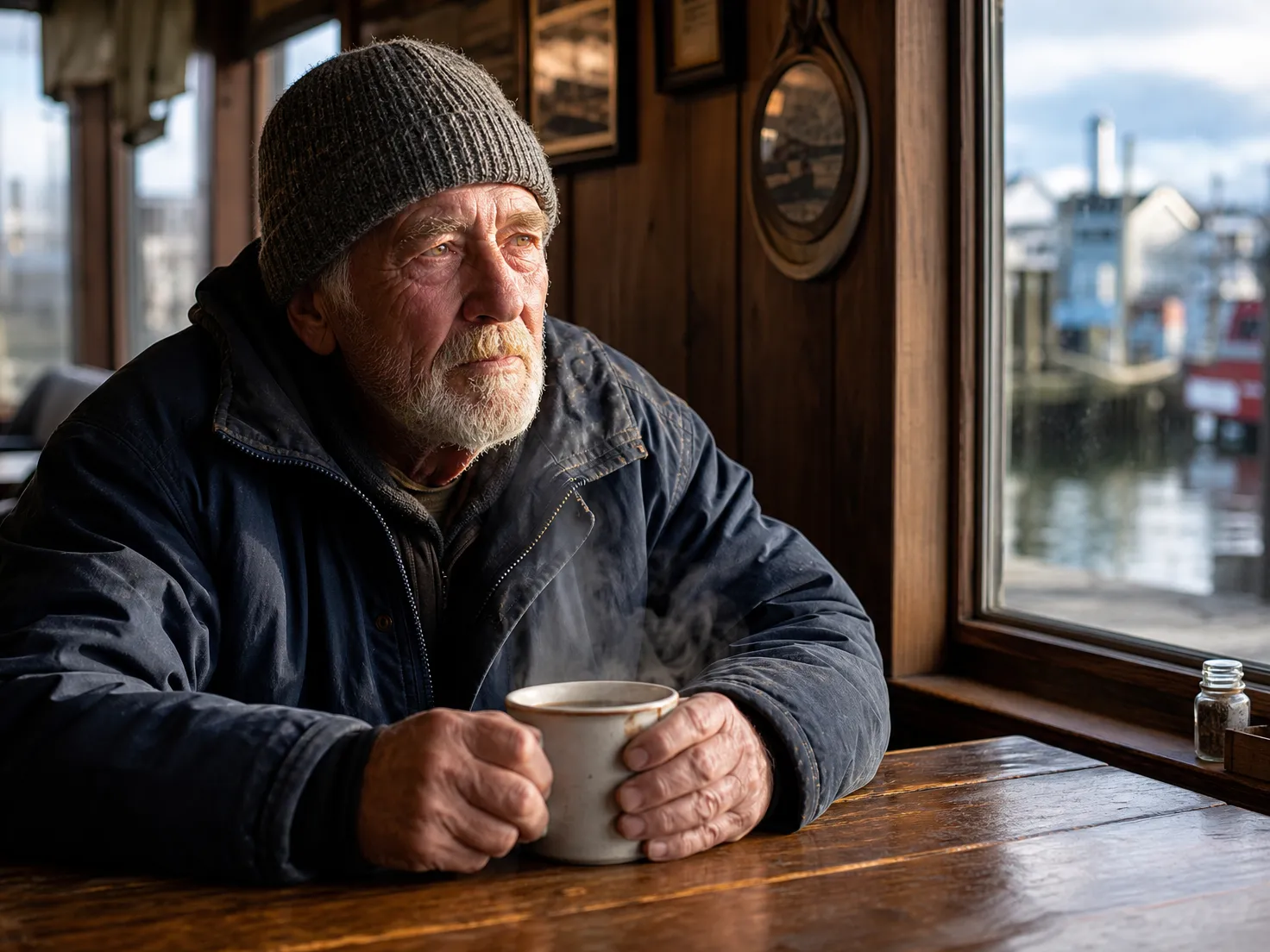
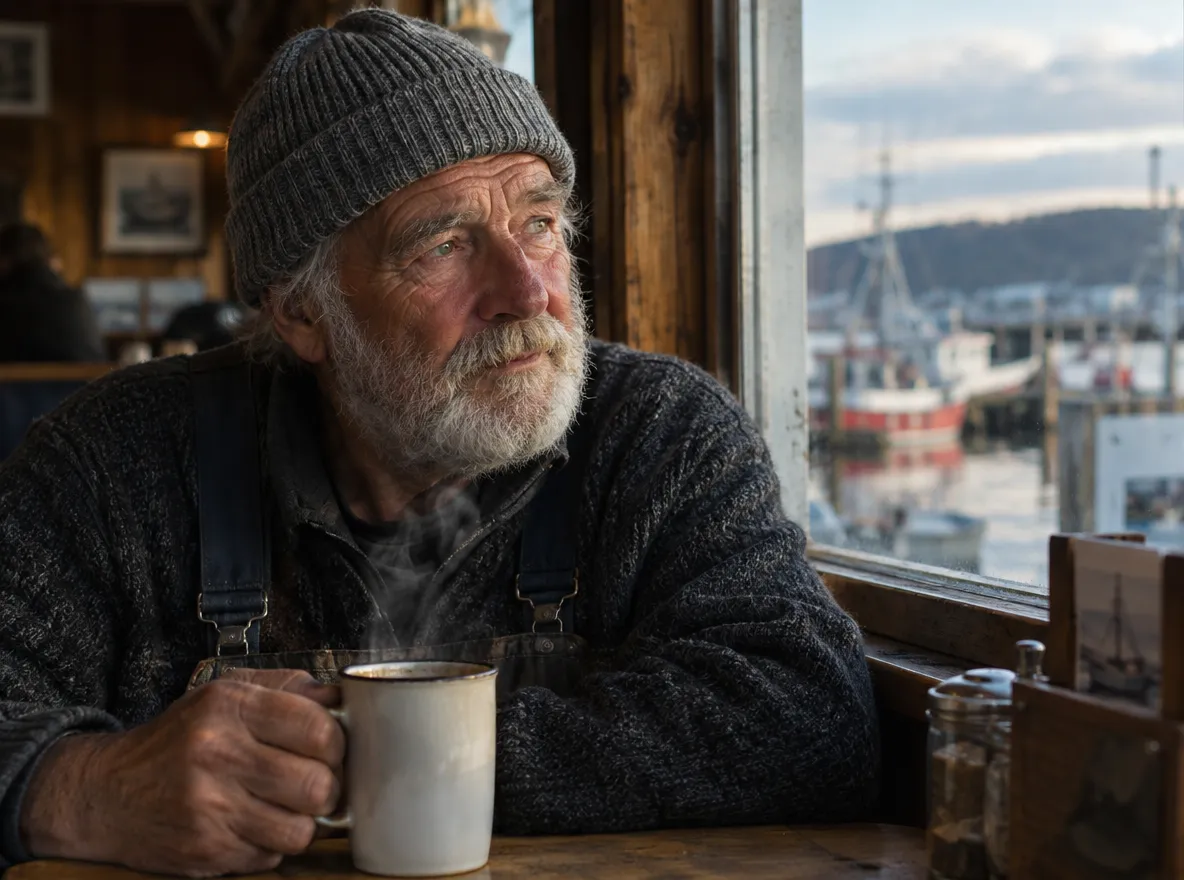
Both are convincing at a glance. The difference is in how closely each followed the lighting brief. GPT Image 2.5 delivered the warm, low "late-afternoon light" the prompt asked for, and the knit of the sweater and beanie holds a little more texture. GPT Image 2 produced a cooler, midday-looking light: still a good photo, just less faithful to the mood we described.
Test 2: a poster with text
Text in images was already a strength of GPT Image 2, so this is a tougher test for the upgrade:
A vintage-style concert poster. Headline at the top: "SUMMER JAZZ NIGHT". Below it a saxophone player silhouetted against a big orange sun over a city skyline. At the bottom in smaller text: "Friday, July 18 · Riverside Park · Free Entry". Warm retro palette, screen-print texture.
Try this prompt
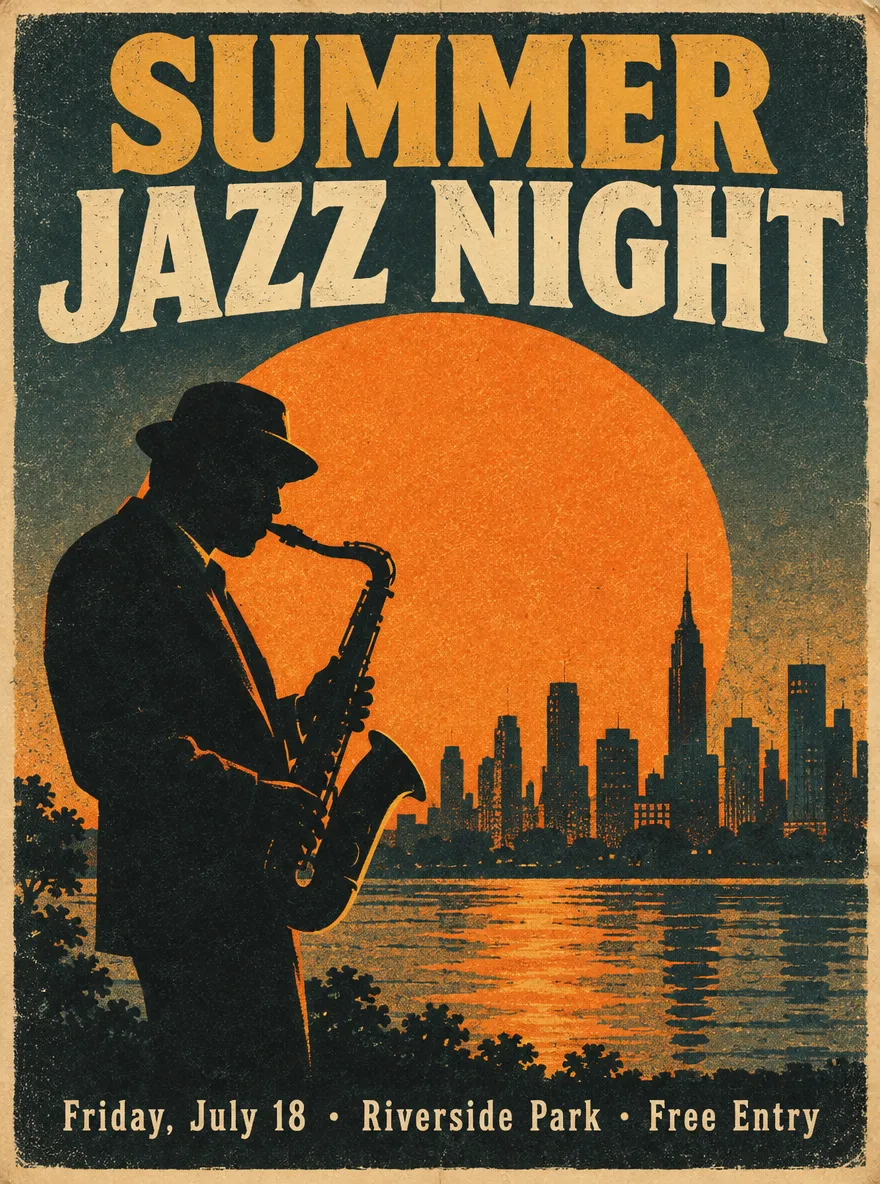
Honestly, this one is close. Both spelled every word correctly, including the small line at the bottom. GPT Image 2.5 mixed two typefaces for the headline and kept the date line in mixed case as written; GPT Image 2 set everything in capitals. For posters, banners and social graphics, either model works, and you can see more text tips in our prompt guide.
Test 3: change one thing, keep the rest
This is where GPT Image 2.5 improves the most. We generated a flat-lay, then asked for a single change:
Change only the mug to a matte yellow mug. Keep everything else exactly the same.
Try this prompt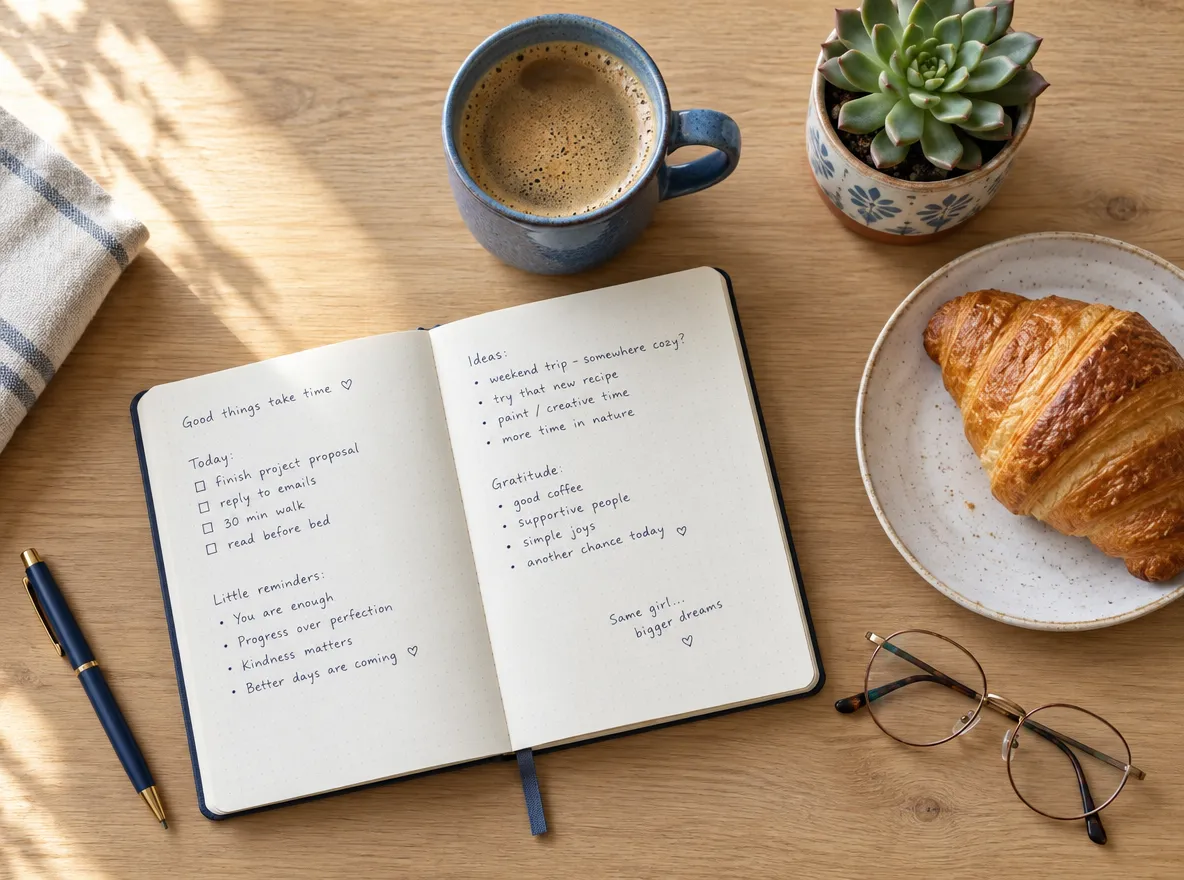
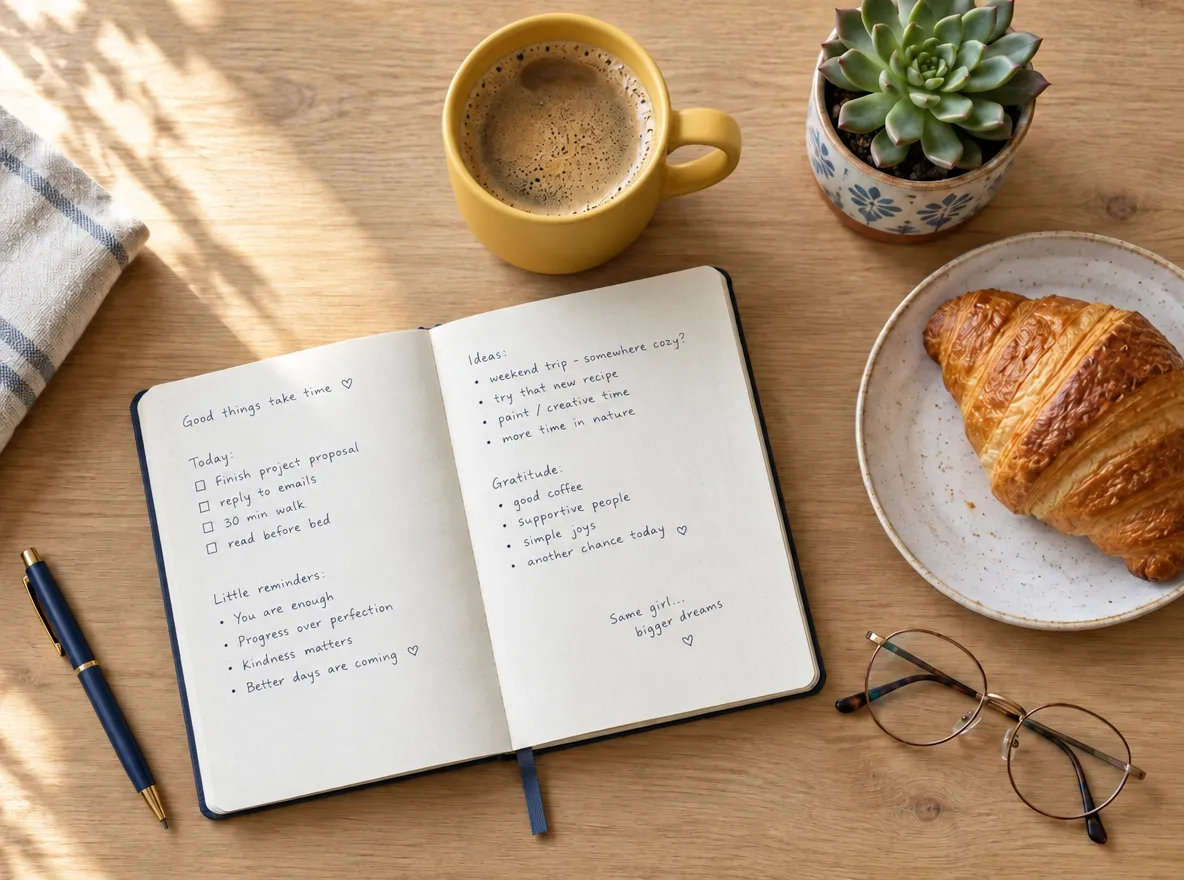
Only the mug changed. The handwriting in the notebook, the croissant, the glasses, the pen and even the shadows stayed in place. More reliable multi-turn editing is the improvement OpenAI highlights most for this release, and in our test it held up: you can keep refining an image without fixing new problems after every edit.
Fast and Thinking: the two tiers of GPT Image 2.5
GPT Image 2.5 comes in two tiers. OpenAI calls them Flare and Sunburst; in our generator they appear as GPT Image 2.5 Fast and GPT Image 2.5 Thinking.
- Fast (Flare) is built for speed. Use it for drafts, everyday images and trying many ideas quickly.
- Thinking (Sunburst) spends more time on each image. Use it for dense layouts, small text, fine detail and precise edits.
A good habit: explore with Fast, then switch to Thinking for the final version.
Should you switch?
- Switch now if you edit images over several rounds, make realistic product or portrait shots, or simply want faster results.
- No rush if you only make simple illustrations or quick concept art and are happy with what you get.
The easiest way to decide is to run your own prompt through it. You can try GPT Image 2.5 on Image2.5 for free with the credits you get when you sign up.